
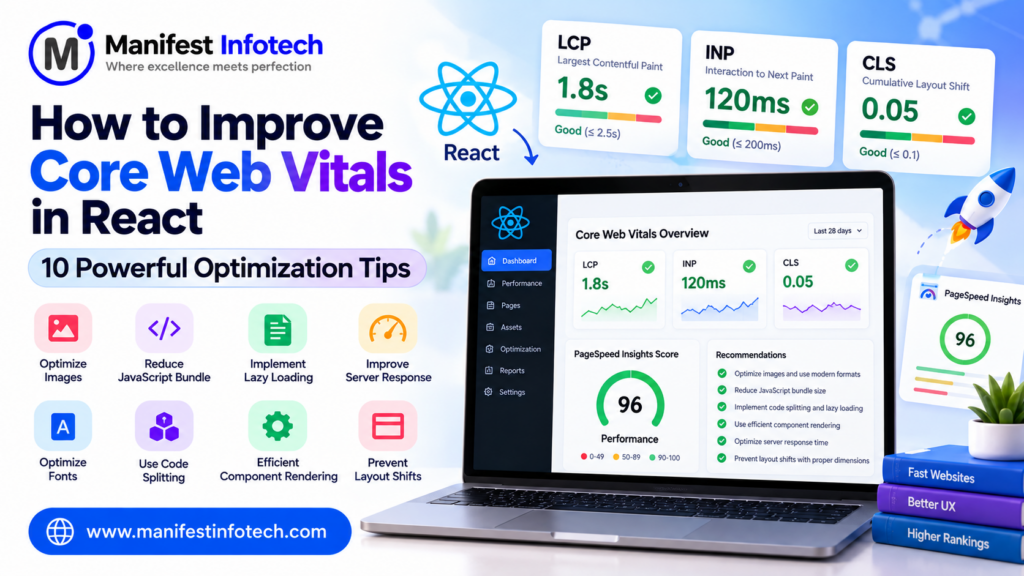
How to Improve Core Web Vitals in React: 10 Powerful Optimization Tips
Website performance plays an important role in creating a positive user experience. Visitors expect web applications to load quickly, respond immediately to interactions, and display content without unexpected layout changes.
However, many React applications experience performance problems because of large JavaScript bundles, unoptimized images, unnecessary component rendering, slow API requests, and inefficient loading strategies.
These issues can negatively affect user experience, increase bounce rates, and make it harder for visitors to interact with important website features.
This is where Core Web Vitals Optimization in React becomes important.
Core Web Vitals are Google’s user experience metrics that evaluate loading performance, interactivity, and visual stability. By optimizing these metrics, developers can build faster, more responsive, and more stable React applications.
Whether you are developing an e-commerce website, business application, SaaS platform, or enterprise dashboard, improving Core Web Vitals should be an important part of your React development strategy.
But what are Core Web Vitals? How can you measure them? Which React optimization techniques should you use? How can you improve your Google PageSpeed Insights performance?
In this complete guide, we will explain how to improve Core Web Vitals in React applications, covering LCP, INP, CLS, performance measurement tools, React optimization techniques, practical code examples, and best practices.
What Are Core Web Vitals?
Core Web Vitals are a collection of performance metrics introduced by Google to measure important aspects of real-world website user experience.
They focus on three major areas:
- Loading performance.
- Interactivity and responsiveness.
- Visual stability.
Google currently uses three Core Web Vitals metrics:
- Largest Contentful Paint (LCP).
- Interaction to Next Paint (INP).
- Cumulative Layout Shift (CLS).
These metrics help developers understand how users experience a website beyond simply measuring how quickly a page downloads.
Why Are Core Web Vitals Important for React Applications?
React is a popular JavaScript library for building interactive user interfaces. However, React applications can experience performance problems when they contain unnecessary JavaScript, inefficient rendering logic, large images, or poorly optimized components.
Improving Core Web Vitals can provide several benefits:
1. Better User Experience
Fast-loading pages and responsive interactions make it easier for visitors to navigate your application.
2. Improved Search Visibility
Google considers Core Web Vitals as part of its page experience signals. Good performance supports a positive user experience, although it does not guarantee higher search rankings.
3. Reduced User Frustration
Unexpected layout changes, slow interactions, and delayed content can frustrate visitors.
Optimizing these issues helps create a more predictable browsing experience.
4. Better Mobile Performance
Many visitors access websites through smartphones and mobile networks.
Optimizing images, JavaScript, and rendering performance can make React applications more accessible to mobile users.
5. Improved Conversion Opportunities
For e-commerce platforms and business websites, faster and more responsive interfaces can make important activities such as product browsing, form submissions, and checkout easier.
Understanding the Three Core Web Vitals Metrics
Before optimizing a React application, it is important to understand what each metric measures and its recommended target.
1. Largest Contentful Paint (LCP)
Largest Contentful Paint measures how long it takes for the largest eligible content element within the visible area of a webpage to render.
This element is commonly:
- A large hero image.
- A featured product image.
- A video poster.
- A large heading or text block.
Recommended LCP target: 2.5 seconds or less.
A slow LCP can happen because of:
- Large unoptimized images.
- Slow server response times.
- Render-blocking CSS and JavaScript.
- Poor caching strategies.
- Slow font loading.
- Delayed loading of important content.
Example:
If a visitor opens a React e-commerce website and the main product banner takes five seconds to appear, the page may have a poor LCP experience.
2. Interaction to Next Paint (INP)
Interaction to Next Paint measures how responsive a webpage is to user interactions throughout a visit.
These interactions include:
- Clicking buttons.
- Opening menus.
- Submitting forms.
- Selecting filters.
- Typing into input fields.
- Interacting with navigation elements.
Recommended INP target: 200 milliseconds or less.
Poor INP can be caused by:
- Long-running JavaScript tasks.
- Excessive component rendering.
- Expensive event handlers.
- Large JavaScript bundles.
- Heavy third-party scripts.
- Inefficient state management.
Example:
If a user clicks an Add to Cart button and the interface takes a long time to respond, the application may have an INP problem.
3. Cumulative Layout Shift (CLS)
Cumulative Layout Shift measures unexpected movement of visible webpage elements during the page’s lifetime.
Recommended CLS target: 0.1 or less.
Common causes include:
- Images without defined dimensions.
- Advertisements that load dynamically.
- Web fonts that change text layout.
- Dynamically inserted content.
- Elements appearing above existing content.
- Layout changes caused by asynchronous components.
Example:
A visitor tries to click a navigation button, but an advertisement loads above it and moves the button downward.
This creates an unexpected layout shift.
Core Web Vitals Performance Targets
| Metric | What It Measures | Good | Needs Improvement | Poor |
|---|---|---|---|---|
| LCP | Loading performance | ≤2.5 sec | 2.5–4 sec | >4 sec |
| INP | Responsiveness | ≤200 ms | 200–500 ms | >500 ms |
| CLS | Visual stability | ≤0.1 | 0.1–0.25 | >0.25 |
These targets should be evaluated at the 75th percentile of real user visits, separately for mobile and desktop where applicable.
How to Measure Core Web Vitals in a React Application
Before making performance improvements, identify which metrics are causing problems.
Several tools can help developers measure and analyze React application performance.
1. Google PageSpeed Insights
Google PageSpeed Insights provides performance reports for individual URLs.
It includes:
- Core Web Vitals information.
- Performance scores.
- Loading diagnostics.
- Image optimization suggestions.
- JavaScript execution analysis.
- Opportunities for improving page performance.
It can show both real-user field data, when available, and controlled Lighthouse lab results.
2. Google Search Console
The Core Web Vitals report in Google Search Console helps website owners identify groups of URLs with poor, improving, or good real-world performance.
It is particularly useful for websites with many pages.
3. Chrome DevTools
Chrome DevTools provides performance profiling and debugging capabilities.
Developers can use the Performance panel to identify:
- Long JavaScript tasks.
- Expensive rendering operations.
- Layout shifts.
- Slow resource loading.
- Main-thread activity.
4. Lighthouse
Lighthouse is an automated auditing tool that evaluates website performance and other quality factors.
It can provide useful diagnostic information about loading speed, accessibility, SEO, and best practices.
Remember that Lighthouse lab results are not identical to real-user Core Web Vitals.
5. React Developer Tools
React Developer Tools includes a Profiler that helps identify unnecessary renders and expensive component updates.
It is useful when investigating React-specific rendering problems that may contribute to poor INP.
10 Powerful Ways to Improve Core Web Vitals in React
Now that you understand the metrics and measurement tools, let’s explore practical optimization techniques.
1. Optimize Images to Improve LCP
Images are often among the largest resources downloaded by a webpage.
Large hero images, product banners, and background images can delay LCP when they are not properly optimized.
Here are some important image optimization techniques:
- Compress images before uploading.
- Use modern formats such as WebP and AVIF.
- Serve responsive image sizes.
- Specify image dimensions.
- Use a CDN for image delivery.
- Lazy-load images outside the initial viewport.
- Prioritize important above-the-fold images.
Example: Optimized React Image
function HeroSection() {
  return (
    <section>
      <img
        src="/images/hero.webp"
        alt="Modern business dashboard"
        width="1200"
        height="600"
        fetchPriority="high"
      />
    </section>
  );
}

export default HeroSection;
The fetchPriority="high" attribute can help prioritize an important image when it is the LCP element.
For images below the initial viewport, use lazy loading:
<img
  src="/images/product.webp"
  alt="Product image"
  width="600"
  height="400"
  loading="lazy"
/>
Important: Do not lazy-load the main above-the-fold LCP image. This can delay its discovery and loading.
2. Use Code Splitting and Lazy Loading
Large JavaScript bundles can delay page rendering and make applications less responsive.
Code splitting divides application code into smaller chunks so that users do not need to download every component immediately.
React supports lazy loading through React.lazy() and Suspense.
Example: React Lazy Loading
import React, { Suspense, lazy } from "react";

const Dashboard = lazy(() =>
  import("./Dashboard")
);

function App() {
  return (
    <Suspense fallback={<p>Loading...</p>}>
      <Dashboard />
    </Suspense>
  );
}

export default App;
In this example, the Dashboard component is loaded when it is required rather than being included in the initial JavaScript bundle.
You can also use route-based code splitting to load different pages independently.
This can improve initial loading performance when implemented correctly.
3. Reduce Unnecessary Component Re-Renders
Unnecessary component rendering can increase JavaScript execution time and negatively affect responsiveness.
React provides several tools that can help optimize rendering.
These include:
React.memo()useMemo()useCallback()
Example: Using React.memo()
import React from "react";

const UserCard = React.memo(({ user }) => {
  console.log("UserCard rendered");

  return (
    <div>
      <h3>{user.name}</h3>
      <p>{user.email}</p>
    </div>
  );
});

export default UserCard;
React.memo can prevent a component from rendering again when its props have not changed according to React’s comparison.
Example: Using useMemo()
import { useMemo } from "react";

function ProductList({ products }) {
  const filteredProducts = useMemo(() => {
    return products.filter(
      product => product.price > 1000
    );
  }, [products]);

  return (
    <ul>
      {filteredProducts.map(product => (
        <li key={product.id}>
          {product.name}
        </li>
      ))}
    </ul>
  );
}
useMemo() can help avoid repeating expensive calculations when dependencies have not changed.
However, do not use memoization everywhere. Apply it when profiling identifies a meaningful performance benefit.
4. Optimize JavaScript Execution to Improve INP
Heavy JavaScript execution can block the browser’s main thread and delay user interactions.
This can result in poor INP.
To improve responsiveness:
- Avoid unnecessary event handlers.
- Break long-running tasks into smaller tasks.
- Avoid expensive calculations during rendering.
- Reduce unnecessary state updates.
- Defer non-critical JavaScript.
- Optimize third-party scripts.
- Use Web Workers for suitable CPU-intensive work.
For expensive non-urgent React updates, consider using useTransition().
Example: Using useTransition()
import {
  useState,
  useTransition
} from "react";

function SearchApp({ items }) {
  const [query, setQuery] = useState("");
  const [results, setResults] = useState(items);
  const [isPending, startTransition] =
    useTransition();

  function handleSearch(value) {
    setQuery(value);

    startTransition(() => {
      const filtered = items.filter(item =>
        item.name
          .toLowerCase()
          .includes(value.toLowerCase())
      );

      setResults(filtered);
    });
  }

  return (
    <div>
      <input
        value={query}
        onChange={e =>
          handleSearch(e.target.value)
        }
        placeholder="Search products"
      />

      {isPending && <p>Updating results...</p>}

      {results.map(item => (
        <p key={item.id}>{item.name}</p>
      ))}
    </div>
  );
}

export default SearchApp;
useTransition() allows React to mark certain updates as non-urgent so more important interactions can remain responsive.
It does not make expensive JavaScript calculations automatically faster. For very large datasets, consider debouncing, pagination, virtualization, or moving expensive work to a Web Worker.
5. Optimize Font Loading and Prevent Layout Shifts
Custom fonts can create layout changes when they load after the initial page content.
This may negatively affect CLS.
Recommended practices include:
- Use modern font formats such as WOFF2.
- Limit the number of font families and weights.
- Preload critical fonts when appropriate.
- Use
font-display: swap. - Choose fallback fonts with similar dimensions.
Example: Font Optimization
@font-face {
  font-family: "MyFont";
  src: url("/fonts/myfont.woff2")
    format("woff2");
  font-display: swap;
}

body {
  font-family: "MyFont", Arial, sans-serif;
}
You can also preload a critical font in your HTML document:
<link
  rel="preload"
  href="/fonts/myfont.woff2"
  as="font"
  type="font/woff2"
  crossorigin
/>
Only preload fonts that are genuinely important for the initial page rendering.
6. Use Server-Side Rendering or Static Site Generation
Traditional client-side rendering may require the browser to download JavaScript, execute it, and render the main content.
For some applications, this can delay the display of meaningful page content.
Server-side rendering (SSR) and static site generation (SSG) can help deliver HTML content earlier.
Popular React-based frameworks include:
- Next.js.
- React Router with appropriate server rendering support.
- Other React frameworks supporting server rendering.
Example: Next.js Page
export default function HomePage() {
  return (
    <main>
      <h1>Welcome to Our Website</h1>
      <p>
        Discover our products and services.
      </p>
    </main>
  );
}
Next.js can render page content on the server or generate static pages depending on the rendering strategy.
SSR and SSG can improve initial content delivery, but they do not automatically guarantee good Core Web Vitals.
Server response time, JavaScript execution, image loading, hydration, and layout stability still need optimization.
7. Optimize API Requests and Data Fetching
React applications often depend on APIs to retrieve product information, user profiles, dashboard data, and other content.
Slow or unnecessary API requests can affect page performance.
Recommended techniques include:
- Avoid duplicate API requests.
- Use pagination for large datasets.
- Cache reusable API responses.
- Load non-critical data asynchronously.
- Optimize backend response times.
- Use efficient database queries.
- Avoid unnecessary sequential requests.
- Display stable loading placeholders.
Popular data-fetching libraries include:
- TanStack Query.
- SWR.
- Redux Toolkit Query.
Example: Using Fetch with React
import { useEffect, useState } from "react";

function Users() {
  const [users, setUsers] = useState([]);
  const [loading, setLoading] = useState(true);

  useEffect(() => {
    const controller = new AbortController();

    async function fetchUsers() {
      try {
        const response = await fetch(
          "/api/users",
          { signal: controller.signal }
        );

        if (!response.ok) {
          throw new Error("Failed to load users");
        }

        const data = await response.json();
        setUsers(data);
      } catch (error) {
        if (error.name !== "AbortError") {
          console.error(error);
        }
      } finally {
        if (!controller.signal.aborted) {
          setLoading(false);
        }
      }
    }

    fetchUsers();

    return () => controller.abort();
  }, []);

  if (loading) return <p>Loading users...</p>;

  return (
    <ul>
      {users.map(user => (
        <li key={user.id}>{user.name}</li>
      ))}
    </ul>
  );
}

export default Users;
For production applications, also consider request caching, error states, retries, and data freshness requirements.
8. Prevent Cumulative Layout Shift (CLS)
Unexpected movement of webpage elements creates a poor browsing experience.
React applications should reserve sufficient space for content that loads asynchronously.
Important techniques include:
- Set image width and height.
- Reserve space for advertisements.
- Use fixed or predictable container dimensions.
- Avoid inserting content above existing elements.
- Use stable loading placeholders.
- Avoid unexpected font changes.
- Animate elements using transform rather than layout-changing properties when appropriate.
Example: Prevent Image Layout Shifts
function ProductImage() {
  return (
    <img
      src="/images/product.webp"
      alt="Product"
      width="600"
      height="400"
      style={{
        width: "100%",
        height: "auto"
      }}
    />
  );
}
Providing image dimensions allows the browser to reserve the correct aspect ratio before the image finishes loading.
9. Optimize Third-Party Scripts and Use CDN Caching
Third-party scripts can affect page performance, especially when they execute during the initial loading process.
Examples include:
- Analytics scripts.
- Advertising scripts.
- Chat widgets.
- Social media integrations.
- Tracking tools.
- External video embeds.
Review whether each third-party script is necessary.
Use asynchronous or deferred loading when appropriate, and delay non-essential widgets until they are needed.
You can also use a Content Delivery Network (CDN) to deliver static assets from geographically distributed servers.
Popular CDN solutions include Cloudflare, Amazon CloudFront, and other CDN providers.
CDNs can help improve resource delivery times, especially for users accessing your application from different locations.
10. Continuously Monitor and Optimize Performance
Performance optimization should not be a one-time activity.
Application code, images, third-party scripts, and user traffic change over time.
Regular monitoring helps identify new performance problems.
Recommended tools include:
- Google PageSpeed Insights.
- Google Search Console.
- Chrome DevTools.
- Lighthouse.
- React Developer Tools.
- Web Vitals JavaScript Library.
You can also collect real-user metrics through the web-vitals package.
Example: Measuring Core Web Vitals
Install the package:
npm install web-vitalsCreate a monitoring file:
import {
  onCLS,
  onINP,
  onLCP
} from "web-vitals";

function sendToAnalytics(metric) {
  console.log({
    name: metric.name,
    value: metric.value,
    rating: metric.rating
  });

  // Send metrics to your analytics service.
}

onCLS(sendToAnalytics);
onINP(sendToAnalytics);
onLCP(sendToAnalytics);
Import this monitoring file once from your application entry point.
In production, send the measurements to an analytics endpoint and monitor them over time. Avoid relying only on console logs.
This helps development teams understand how real users experience their applications.
Common React Performance Problems and Their Solutions
Here are some common performance issues developers may encounter.
| Performance Problem | Recommended Solution |
|---|---|
| Large JavaScript bundle | Code splitting and tree shaking |
| Slow hero image | Image compression and priority loading |
| Unnecessary component rendering | Profiling and selective memoization |
| Slow user interactions | Optimize event handlers and long tasks |
| Layout shifts | Set image dimensions and reserve content space |
| Slow API requests | Caching and backend optimization |
| Heavy third-party scripts | Defer or remove unnecessary scripts |
| Slow initial rendering | SSR, SSG, and critical resource optimization |
| Large lists | Virtualization and pagination |
| Slow mobile experience | Responsive assets and mobile performance testing |
Best Practices for React Core Web Vitals Optimization
To maintain good website performance, follow these practices:
- Use production builds when measuring real application performance.
- Optimize images using modern formats.
- Prioritize the main LCP resource.
- Avoid lazy loading above-the-fold images.
- Use code splitting for large applications.
- Minimize unn
Google Core Web Vitals Documentation
React Lazy Loading Documentation