
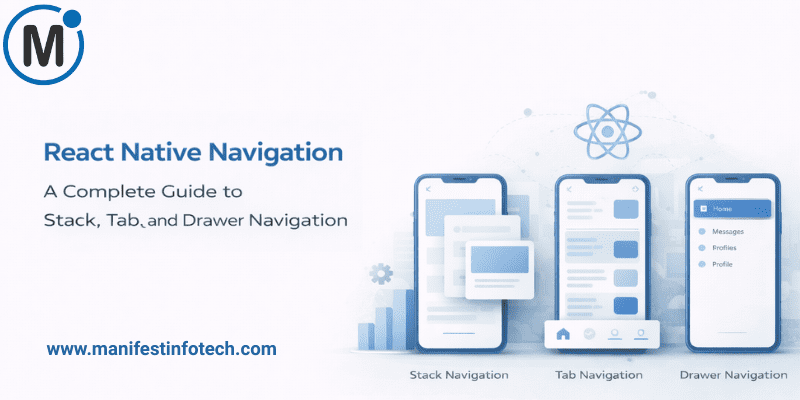
Navigation is at the heart of every mobile app. Whether you\’re building a simple onboarding flow or a complex multi-module application, React Native gives you powerful tools to create smooth, intuitive navigation experiences. The most popular and flexible solution today is 𝗥𝗲𝗮𝗰𝘁 𝗡𝗮𝘃𝗶𝗴𝗮𝘁𝗶𝗼𝗻, offering Stack, Tab, and Drawer navigators—each serving distinct purposes. This guide will help you understand how and when to use each one.
𝟭. 𝗦𝗲𝘁𝘁𝗶𝗻𝗴 𝗨𝗽 𝗥𝗲𝗮𝗰𝘁 𝗡𝗮𝘃𝗶𝗴𝗮𝘁𝗶𝗼𝗻
Start by installing the core library and dependencies:
npm install @react-navigation/native
npm install react-native-screens react-native-safe-area-context
Then install the navigators:
npm install @react-navigation/native-stack
npm install @react-navigation/bottom-tabs
npm install @react-navigation/drawer
Wrap your root component:
import { NavigationContainer } from \'@react-navigation/native\';

<NavigationContainer>
  <AppNavigation />
</NavigationContainer>
Your navigation system is now ready.
𝟮. 𝗦𝘁𝗮𝗰𝗸 𝗡𝗮𝘃𝗶𝗴𝗮𝘁𝗶𝗼𝗻 – 𝗕𝗲𝘀𝘁 𝗳𝗼𝗿 𝗦𝗰𝗿𝗲𝗲𝗻𝘀 𝗙𝗹𝗼𝘄
Stack navigation mimics a call stack—perfect for moving between screens in a linear flow.
𝗘𝘅𝗮𝗺𝗽𝗹𝗲:
import { createNativeStackNavigator } from \'@react-navigation/native-stack\';

const Stack = createNativeStackNavigator();

<Stack.Navigator>
  <Stack.Screen name=\"Home\" component={HomeScreen} />
  <Stack.Screen name=\"Details\" component={DetailsScreen} />
</Stack.Navigator>
𝗨𝘀𝗲 𝗦𝘁𝗮𝗰𝗸 𝗡𝗮𝘃𝗶𝗴𝗮𝘁𝗶𝗼𝗻 𝗙𝗼𝗿:
- Login → Sign Up → Dashboard
- Product list → Product detail
- Newsfeed → Article view
It supports transitions, headers, gestures, and smooth animations.
𝟯. 𝗧𝗮𝗯 𝗡𝗮𝘃𝗶𝗴𝗮𝘁𝗶𝗼𝗻 – 𝗜𝗱𝗲𝗮𝗹 𝗳𝗼𝗿 𝗔𝗽𝗽 𝗦𝗲𝗰𝘁𝗶𝗼𝗻𝘀
Tab navigation is perfect for global destinations users switch between frequently—like a bottom menu.
𝗘𝘅𝗮𝗺𝗽𝗹𝗲:
import { createBottomTabNavigator } from \'@react-navigation/bottom-tabs\';

const Tab = createBottomTabNavigator();

<Tab.Navigator>
  <Tab.Screen name=\"Home\" component={HomeScreen} />
  <Tab.Screen name=\"Profile\" component={ProfileScreen} />
  <Tab.Screen name=\"Settings\" component={SettingsScreen} />
</Tab.Navigator>
𝗨𝘀𝗲 𝗧𝗮𝗯 𝗡𝗮𝘃𝗶𝗴𝗮𝘁𝗶𝗼𝗻 𝗙𝗼𝗿:
- Home, Explore, Cart, Profile
- Music app: Home, Search, Library
- Fitness app: Dashboard, Workouts, Stats
You can style tabs, add icons, badges, and custom animations.
𝟰. 𝗗𝗿𝗮𝘄𝗲𝗿 𝗡𝗮𝘃𝗶𝗴𝗮𝘁𝗶𝗼𝗻 – 𝗚𝗿𝗲𝗮𝘁 𝗳𝗼𝗿 𝗛𝗶𝗱𝗱𝗲𝗻 𝗠𝗲𝗻𝘂𝘀
Drawer navigation slides from the side, offering space for additional or secondary screens.
𝗘𝘅𝗮𝗺𝗽𝗹𝗲:
import { createDrawerNavigator } from \'@react-navigation/drawer\';

const Drawer = createDrawerNavigator();

<Drawer.Navigator>
  <Drawer.Screen name=\"Dashboard\" component={Dashboard} />
  <Drawer.Screen name=\"Settings\" component={Settings} />
  <Drawer.Screen name=\"Help\" component={Help} />
</Drawer.Navigator>
𝗨𝘀𝗲 𝗗𝗿𝗮𝘄𝗲𝗿 𝗡𝗮𝘃𝗶𝗴𝗮𝘁𝗶𝗼𝗻 𝗙𝗼𝗿:
- Admin dashboards
- Settings-heavy apps
- Side menus with lots of options
Great when you have many screens but want to keep the UI clean.
𝟱. 𝗖𝗼𝗺𝗯𝗶𝗻𝗶𝗻𝗴 𝗡𝗮𝘃𝗶𝗴𝗮𝘁𝗼𝗿𝘀 𝘁𝗵𝗲 𝗥𝗶𝗴𝗵𝘁 𝗪𝗮𝘆
Most apps use a combination:
- 𝗧𝗮𝗯𝘀 𝗶𝗻𝘀𝗶𝗱𝗲 𝗮 𝗦𝘁𝗮𝗰𝗸
(For main sections with drill-down screens) - 𝗦𝘁𝗮𝗰𝗸 𝗶𝗻𝘀𝗶𝗱𝗲 𝗮 𝗗𝗿𝗮𝘄𝗲𝗿
(For apps with many optional screens) - 𝗗𝗿𝗮𝘄𝗲𝗿 + 𝗧𝗮𝗯𝘀 + 𝗦𝘁𝗮𝗰𝗸
(For large-scale apps)
Example hybrid structure:
Drawer
 ├── Bottom Tabs
 │     ├── Home Stack
 │     ├── Search Stack
 │     └── Profile Stack
 └── Settings Stack
𝗙𝗶𝗻𝗮𝗹 𝗧𝗵𝗼𝘂𝗴𝗵𝘁𝘀
React Navigation is powerful because it mirrors real-world app architecture. Stack handles screen flows, Tabs handle major sections, and Drawer handles auxiliary features. Mastering these three gives you complete control over how users move through your app.
If you are looking for any services related to Website Development, App Development, Digital Marketing and SEO, just email us at nchouksey@manifestinfotech.com
#ReactNative #ReactNavigation #MobileDevelopment #JavaScript #AppNavigation #StackNavigation #TabNavigation #DrawerNavigation #ReactNativeTips #CrossPlatformDevelopment #MobileApps #JSDeveloper #UIUXDesign #AppArchitecture #NavigationGuide #FrontendDevelopment #CodingBestPractices #DeveloperTips #ReactNative2025 #ModernApps