
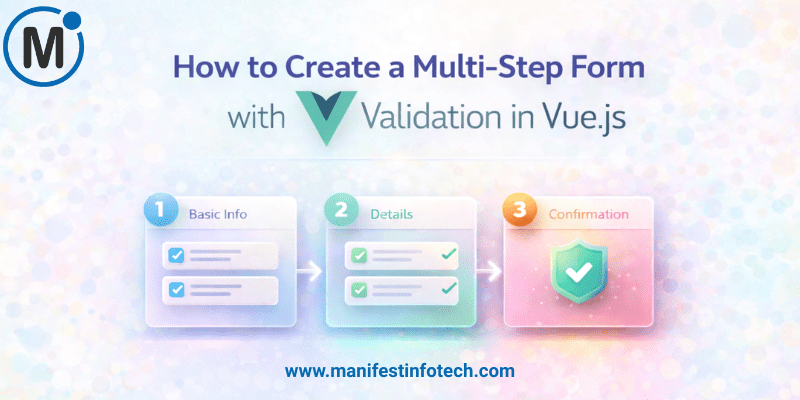
Creating a multi-step form is one of the most effective ways to simplify long form submissions and improve user experience. Instead of overwhelming users with dozens of fields on a single screen, multi-step forms break the process into clear, digestible sections. With Vue.js, you can build a smooth, interactive, and fully validated multi-step form that feels effortless to complete. Let’s walk through it step-by-step.
𝗪𝗵𝘆 𝗠𝘂𝗹𝘁𝗶-𝗦𝘁𝗲𝗽 𝗙𝗼𝗿𝗺𝘀 𝗠𝗮𝘁𝘁𝗲𝗿
Long forms often lead to abandonment. By splitting them into multiple stages, you:
- Reduce cognitive load
- Guide users through structured steps
- Improve completion rates
- Keep data organized and manageable
Vue’s reactive nature makes these transitions seamless and intuitive.
𝗣𝗿𝗼𝗷𝗲𝗰𝘁 𝗦𝗲𝘁𝘂𝗽
To begin, create a fresh Vue app using Vite (recommended in 2025 for its speed):
npm create vue@latest
Choose whether you want TypeScript, Router, Pinia, or ESLint. You can build this project with or without them.
𝗣𝗹𝗮𝗻𝗻𝗶𝗻𝗴 𝘁𝗵𝗲 𝗙𝗼𝗿𝗺 𝗦𝘁𝗿𝘂𝗰𝘁𝘂𝗿𝗲
A clean multi-step form typically includes:
- 𝗣𝗮𝗿𝗲𝗻𝘁 𝗰𝗼𝗺𝗽𝗼𝗻𝗲𝗻𝘁:
Manages form state, handles step navigation, and validates transitions. - 𝗖𝗵𝗶𝗹𝗱 𝗰𝗼𝗺𝗽𝗼𝗻𝗲𝗻𝘁𝘀 (one for each step):
Each represents a portion of the form—e.g.,
𝗦𝘁𝗲𝗽 𝟭: Personal Information
𝗦𝘁𝗲𝗽 𝟮: Contact Details
𝗦𝘁𝗲𝗽 𝟯: Account Information
𝗦𝘁𝗲𝗽 𝟰: Review & Submit
Store all form data in a single reactive object in your parent component so the information persists across steps.
𝗔𝗱𝗱𝗶𝗻𝗴 𝗩𝗮𝗹𝗶𝗱𝗮𝘁𝗶𝗼𝗻
Form validation is crucial. While you can manually code validation, libraries like 𝗩𝗲𝗲𝗩𝗮𝗹𝗶𝗱𝗮𝘁𝗲 + 𝗬𝘂𝗽 deliver cleaner, more reliable rules.
𝗪𝗵𝘆 𝗩𝗲𝗲𝗩𝗮𝗹𝗶𝗱𝗮𝘁𝗲?
- Works beautifully with Vue 3
- Offers schema-based validation
- Supports async validation
- Provides clean error messages
Example validation logic per step:
- Validate current fields
- If valid → move to next step
- If not → highlight errors and prevent navigation
This ensures users don’t skip incomplete or incorrect sections.
𝗠𝗮𝗻𝗮𝗴𝗶𝗻𝗴 𝗦𝘁𝗲𝗽 𝗡𝗮𝘃𝗶𝗴𝗮𝘁𝗶𝗼𝗻
Use a currentStep state variable to switch between components:
- 𝗡𝗲𝘅𝘁 button increases the step after validation
- 𝗕𝗮𝗰𝗸 button decreases it
- 𝗦𝘂𝗯𝗺𝗶𝘁 button triggers final validation + form submission
A progress bar or step indicator enhances clarity, showing users exactly where they are in the journey.
𝗥𝗲𝘃𝗶𝗲𝘄 & 𝗦𝘂𝗯𝗺𝗶𝘁 𝗣𝗵𝗮𝘀𝗲
Before sending data, present a summary screen. This allows users to double-check their entries before final submission—reducing potential errors.
Once confirmed:
- Send data to your backend or API
- Show a success message, thank-you page, or redirect
𝗙𝗶𝗻𝗮𝗹 𝗧𝗵𝗼𝘂𝗴𝗵𝘁𝘀
Building a multi-step form with Vue.js gives you the perfect balance of structure, flexibility, and user-friendliness. By combining Vue’s reactivity with modern validation tools, you can create a form experience that feels effortless and reduces friction at every step.
With thoughtful UX design and clean component structure, your multi-step form will not only collect better data—but also leave users with a smoother, more engaging experience.
If you are looking for any services related to Website Development, App Development, Digital Marketing and SEO, just email us at nchouksey@manifestinfotech.com
#Vuejs #Vue3 #MultiStepForm #FormValidation #VueForms #FrontendDevelopment #WebDevelopment #JavaScript #VueTips #VeeValidate #VueDevelopers #CodingBestPractices #UIUXDesign #FormDesign #VueTutorial #JSDeveloper #ModernFrontend #VueEcosystem #WebAppDevelopment #DeveloperTips